Elevate Your Book Marketing with Professional Canva Mockup Templates
For authors and creators navigating the self-publishing world, presenting your book professionally is non-negotiable. A Book Mockup Canva Template is a powerful solution designed to transform your digital files into stunning, realistic visuals ready for marketing. These templates are pre-designed frames within Canva where you simply drag and drop your book cover and interior pages, adjust backgrounds and text, and generate images that make your paperback, hardcover, or notebook look like a photographed, physical product.
Whether you are a seasoned publisher or a first-time author crafting low-content journals or high-content novels, these tools are intended to streamline the final, crucial step: advertising your work. However, their apparent simplicity can lead to overlooked pitfalls that undermine their effectiveness.
Overlooking the Specifics of Your Book's Dimensions
A common and costly misunderstanding is assuming any book mockup will fit your book. Templates are built for specific trim sizes. The popular set designed for 6x9 hardcover books, for instance, will distort and misrepresent a 5x8 or 8.5x11 book. Placing your cover into a mismatched frame results in unnatural stretching, skewed perspectives, and ultimately, a mockup that looks fake—which erodes customer trust before they even read the description.
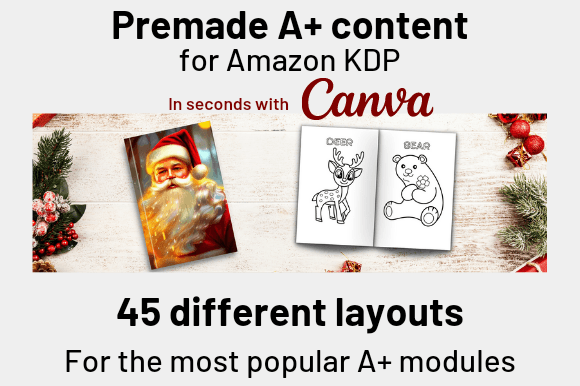
Practical Check: Before using or purchasing a Book Mockup Canva Template, verify its intended trim size. Match it precisely to your published book's dimensions. If your set, like the one offering 45 layouts, is for 6x9, use it exclusively for your 6x9 projects. For other sizes, seek dedicated templates; a professional presentation hinges on this geometric accuracy.
Misusing Layouts Across Different Marketing Channels
Another frequent error is using the same mockup image everywhere. The provided template layouts—such as the Standard Image Text (1940 x 600px), Standard Image Header With Text (1940 x 1200px), and Square (600 x 600px)—are crafted for distinct platforms. Using a long, banner-style mockup on Instagram Square posts will force awkward cropping, cutting off vital text or the book itself.
Better Approach: Strategically assign your templates. Use the Square layouts for Instagram posts and Pinterest pins, the tall Header With Text layouts for Facebook stories or website banners, and the elongated Standard Image Text layouts for Amazon A+ content or email headers. This respects each platform's visual language and maximizes impact.
Neglecting the Context and Background Customization
The "drag and drop" simplicity often leads creators to stop there. They insert their cover onto the default background and export. This can yield a generic, disconnected image. The background sets the scene—a children's book on a bright, playful backdrop versus a thriller on a dark, moody surface. Using the same neutral background for every book type fails to communicate genre and tone to your target audience.
Realistic Example: An activity book mockup placed on a plain white desk looks sterile. The same mockup, with the background changed to a cozy, sunlit wooden table with colored pencils scattered around, instantly suggests creativity and fun. Always leverage the full customizability of the Book Mockup Canva Template. Adjust backgrounds, add minimal props via Canva's elements, and ensure the environment supports your book's story.
Forgetting Interior Preview Mockups
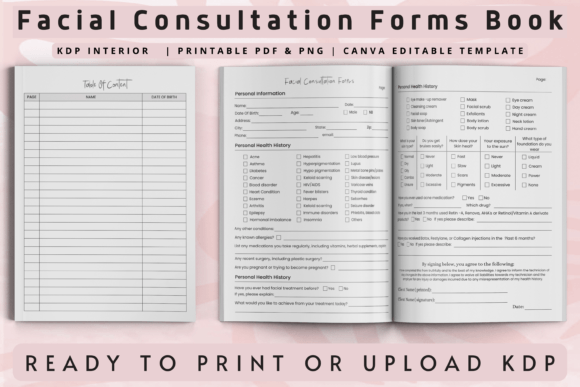
Most focus solely on the cover mockup, a significant oversight. For many books, especially notebooks, diaries, and activity books, the interior quality is a key selling point. A template set that includes frames for interior pages is invaluable. Showing a crisp, well-designed page spread inside your realistic book model provides tangible proof of quality and helps customers visualize using the product.
Advice: When evaluating a Book Mockup Canva Template bundle, check if interior page frames are included. Use them. Create a composite image showing the cover and a compelling interior page side-by-side. This addresses a customer's unspoken question about what they'll find inside, boosting confidence and perceived value.
Underestimating the Power of Realistic Shadows and Lighting
The professional look touted by quality templates comes from their integrated realistic shadows and lighting effects. A mistake is to add your own, heavy-handed shadow effects in Canva on top of the template's built-in ones. This creates double shadows, unnatural darkness, and a cluttered, amateurish image.
The correction is straightforward: Trust the template's design. The custom frames are engineered with shadows that match the perspective. Your role is to ensure your cover file is high-resolution and placed correctly so those shadows work with your artwork, not against it. This preserves the clean, professional aesthetic that makes any book—from a sketchbook to a novel—look credible and desirable.
Failing to Verify File Delivery and Template Accessibility
Before finalizing any decision, understand how you will receive the product. A typical delivery is a .PDF file with links to the Canva templates. Ensure you have a stable Canva account (free or Pro) and know that the links will require you to duplicate the template into your own workspace. A pitfall is not checking the link functionality or the number of layouts promised. Confirm the bundle contains the 45 different template layouts as described, and test one link immediately upon receipt to avoid later project delays.
In summary, a Book Mockup Canva Template is a terrific tool for your KDP journey, but its value is unlocked through mindful, specific application. By matching dimensions, tailoring layouts to platforms, customizing environments, showcasing interiors, respecting built-in design effects, and verifying access, you transform a simple template into a cornerstone of your professional book marketing. The result is not just easier creation, but more persuasive, platform-optimized advertisements that connect with readers on Amazon, Instagram, TikTok, and beyond.